
Browse sample poster results on the right, then tap one to load that prompt back into the generator on the left.
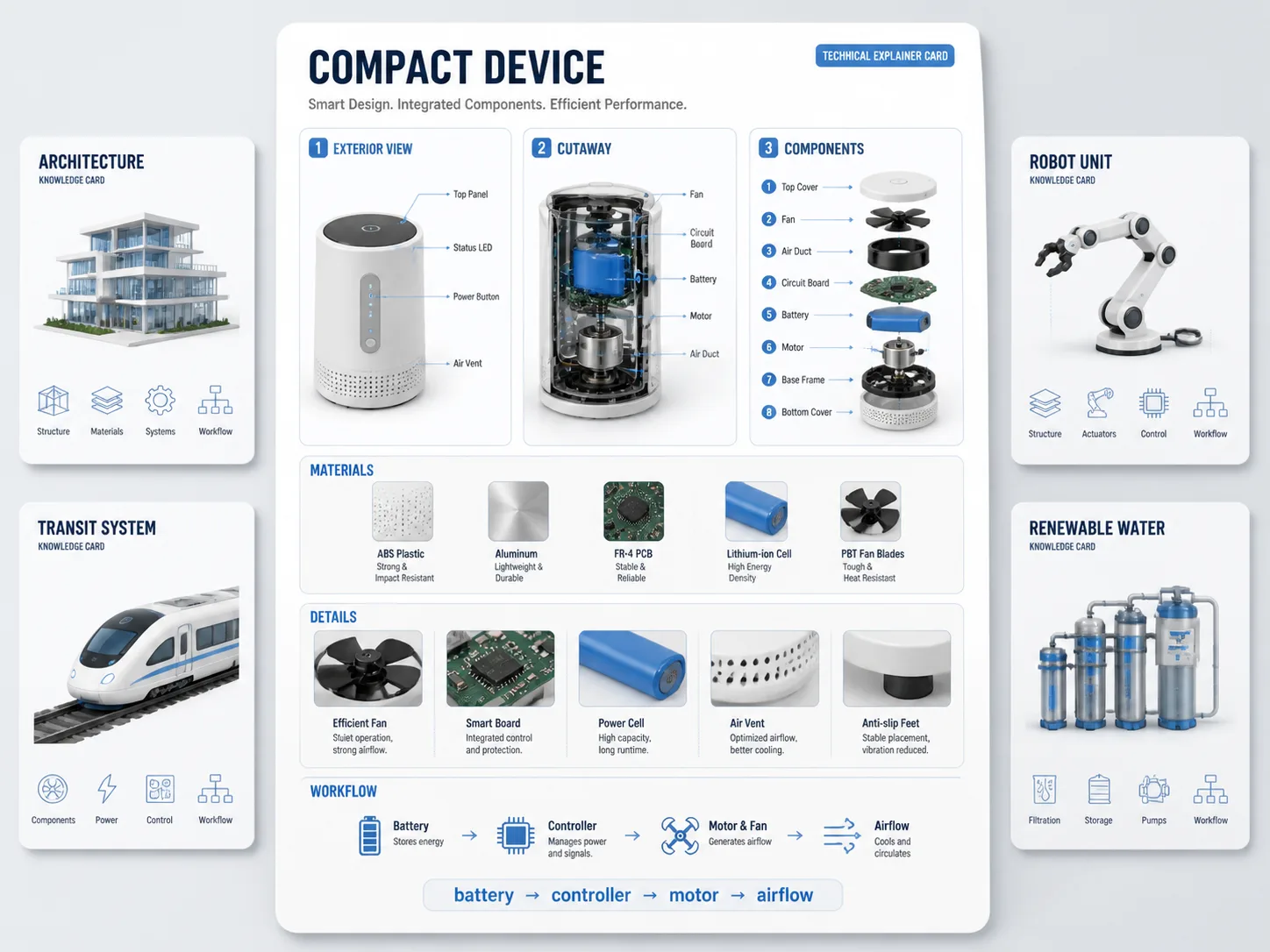
Create technical explainer cards with GPT Image 2 prompts
Turn a device, building, transport system, robot, or environmental process into a polished teaching card. These templates guide GPT Image 2 toward an exterior view, a cutaway or exploded structure, short labels, material notes, detail boxes, and a simple working-principle flow in one readable image.
How the technical card workflow works
Pick a card pattern, replace the subject variables, generate the image, then refine readability and factual clarity.

Choose the closest card pattern
Select a prompt that matches the explanation style you need: product anatomy, science process, architecture system, transit technology, infrastructure airflow, or environmental layers. The layout already includes spaces for labels, detail boxes, and a working-principle sequence.
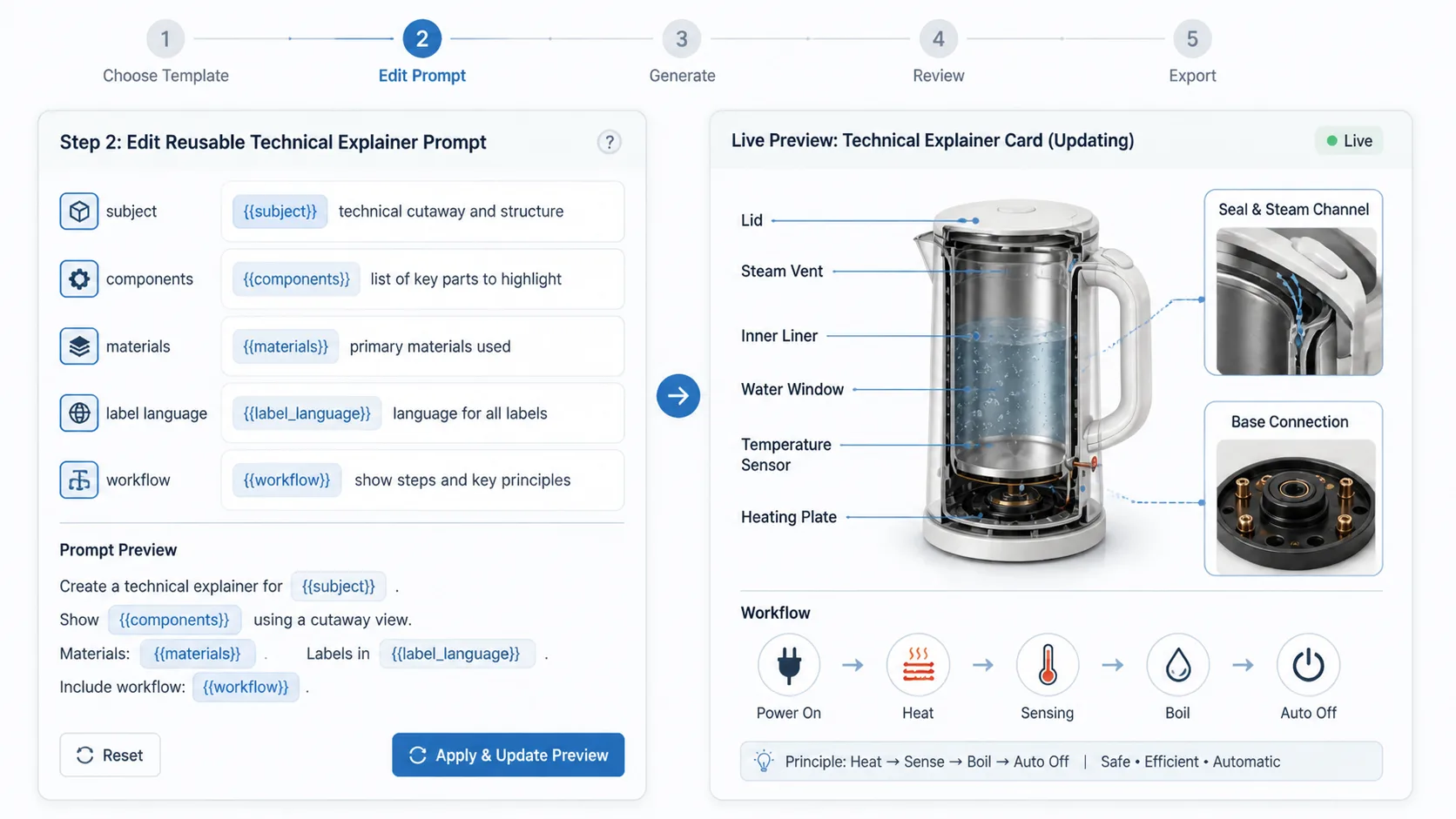
Edit subject and label variables
Replace the object, component list, materials, label language, flow steps, and cultural context. Add a reference image when the subject shape matters, but keep brand names, fake certificates, unsafe repair steps, and exact regulated specifications out of the prompt.
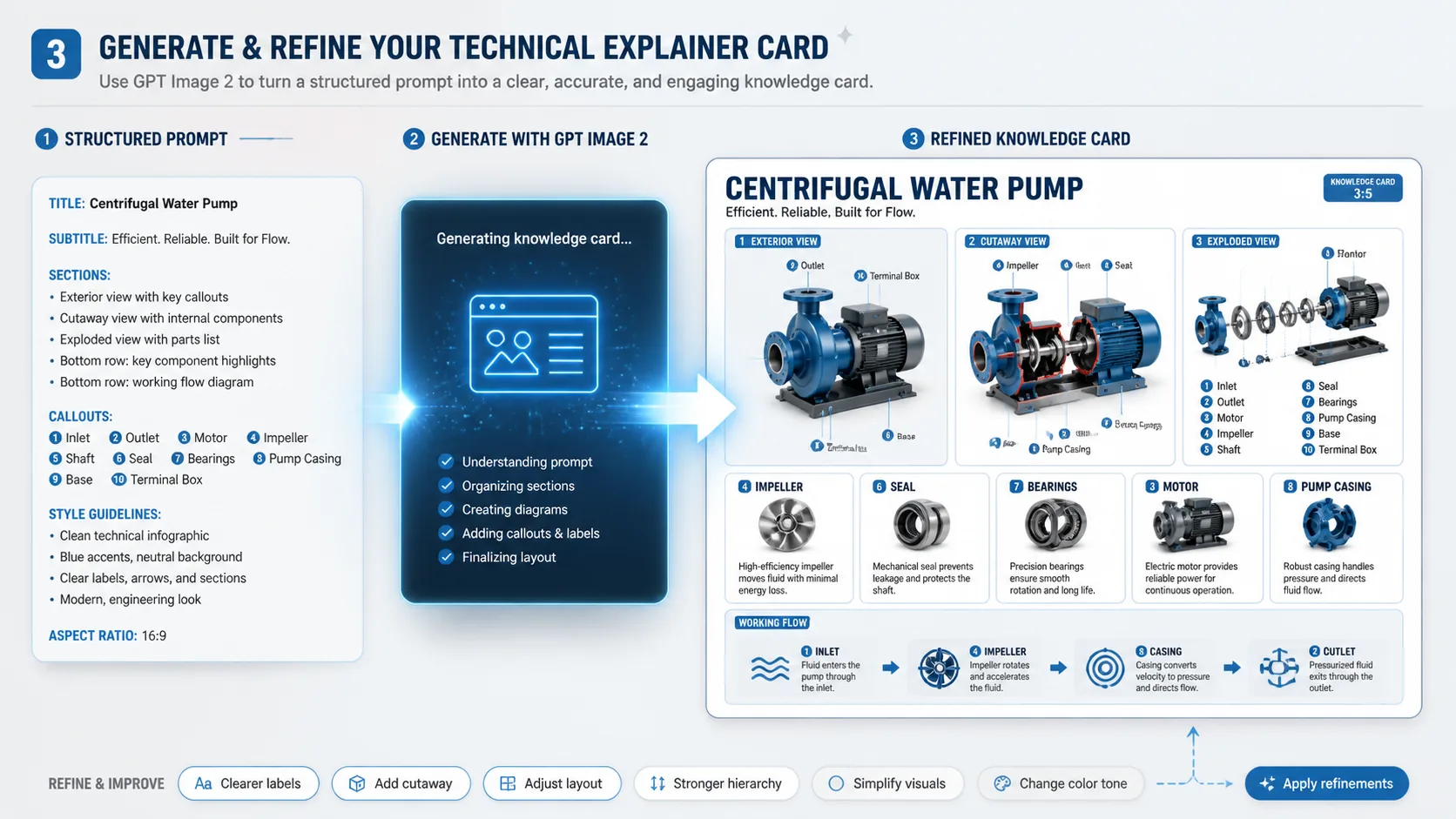
Generate, inspect, and refine
Run GPT Image 2, check whether labels are readable and the diagram hierarchy is clear, then tighten the prompt for fewer parts, larger text, stronger arrows, or a simpler cutaway. Use the result as a visual draft that still needs human fact-checking before formal use.
Technical explainer cards FAQ
Answers for using GPT Image 2 technical card prompts safely and effectively.
Generate a technical card
Start from a reusable technical card template, edit the subject variables, and create a GPT Image 2 explainer for your next lesson, post, article, or concept note.