
History
Your recent image generations
Generated images are listed from newest to oldest, using the same visual history layout as template detail pages.
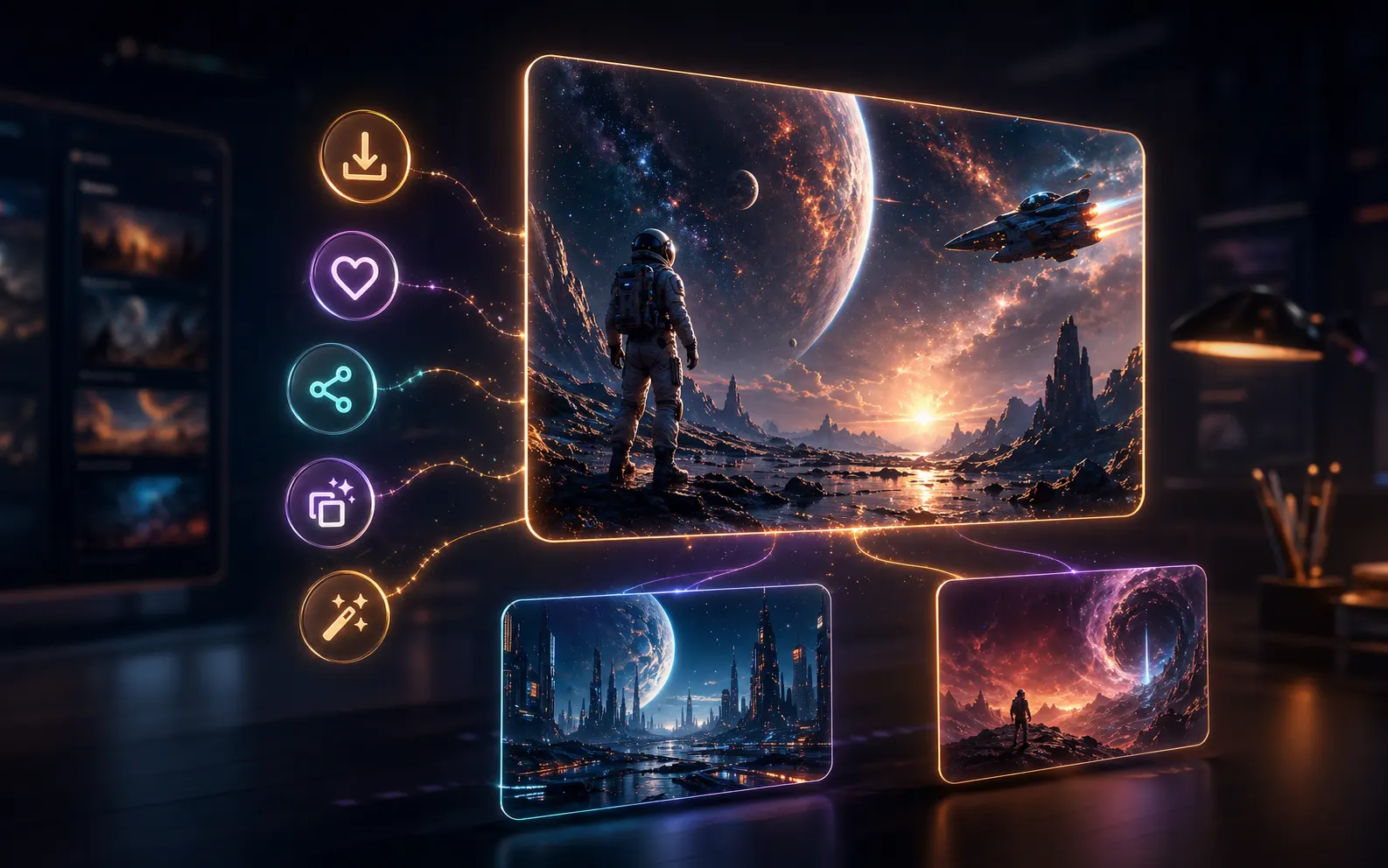
What your generation history keeps ready
History is not just a log of finished images. It keeps each useful result close to the generator so you can review what worked, reuse the prompt, and continue from a previous visual direction without rebuilding the brief from memory.
Newest first
Recent image generations appear first, so the results you just created are easy to inspect, compare, download, or turn into the next draft.
Image detail view
Click a history image to open the same detail sheet used across the workspace, with a larger preview, prompt text, reference images, metadata, download, share, save, and reuse actions.
Prompt context preserved
Each successful result stays connected to its prompt and generation context, making it easier to understand why a draft worked before you change the wording or aspect ratio.
Private workspace view
The page is built for your own workflow rather than public discovery. It is noindexed, and the visible records are scoped to the current signed-in user or guest visitor session.
Use history as the next starting point
The history page is most useful when you treat a past result as working material. Open the image, check the prompt, then send the strongest direction back into the generator for another pass.
Open a past result
Choose a generated image from the history grid. Start with the newest records when you are comparing fresh variations from the same prompt.
Review the prompt
Use the detail sheet to read the original prompt, inspect reference images, and confirm the generation settings before making changes.
Reuse or edit
Load the prompt into the generator when the idea is still useful, or use the image as a reference when you want GPT Image 2 to stay close to the visual direction.
Save the best draft
Download the finished image, save the prompt for later, or share a public result link when the generation is ready to reuse outside the workspace.
History FAQ
Practical answers for reviewing, reusing, and managing GPT Image 2 results from the workspace history page.
Turn a previous result into the next draft
Open a history item, reuse the prompt or image reference, and continue generating from the GPT Image 2 workspace.